




Here’s a clear, beginner-friendly, step-by-step tutorial to create and sell a journal on Amazon KDP using Canva, even if you’ve never published a book before.
STEP 1: Choose Your Journal Type (Very Important)
Before opening Canva, decide what kind of journal you’re creating. Simple journals sell best.
Popular journal ideas:
Lined daily journal
Gratitude journal
Prayer journal
Fitness / workout log
Mental health journal
Budget / expense tracker
Reading journal
Self-care journal
👉 Tip: For your first book, choose a simple lined or prompt-based journal.
STEP 2: Research on Amazon (Quick but Powerful)
Go to Amazon
Search for your journal idea (example: “gratitude journal”)
Click the top 3–5 results
Take notes on:
Page count (usually 100–120 pages)
Size (most common: 6 x 9 inches)
Cover style (minimal, bold text, soft colors)
👉 You are not copying—just understanding what sells.
STEP 3: Open Canva & Set Your Journal Size


Go to Canva
Click Create a Design
Choose Custom Size
Set:
Width: 6 inches
Height: 9 inches
Click Create New Design
This will be your interior page size.
STEP 4: Design the Interior Pages
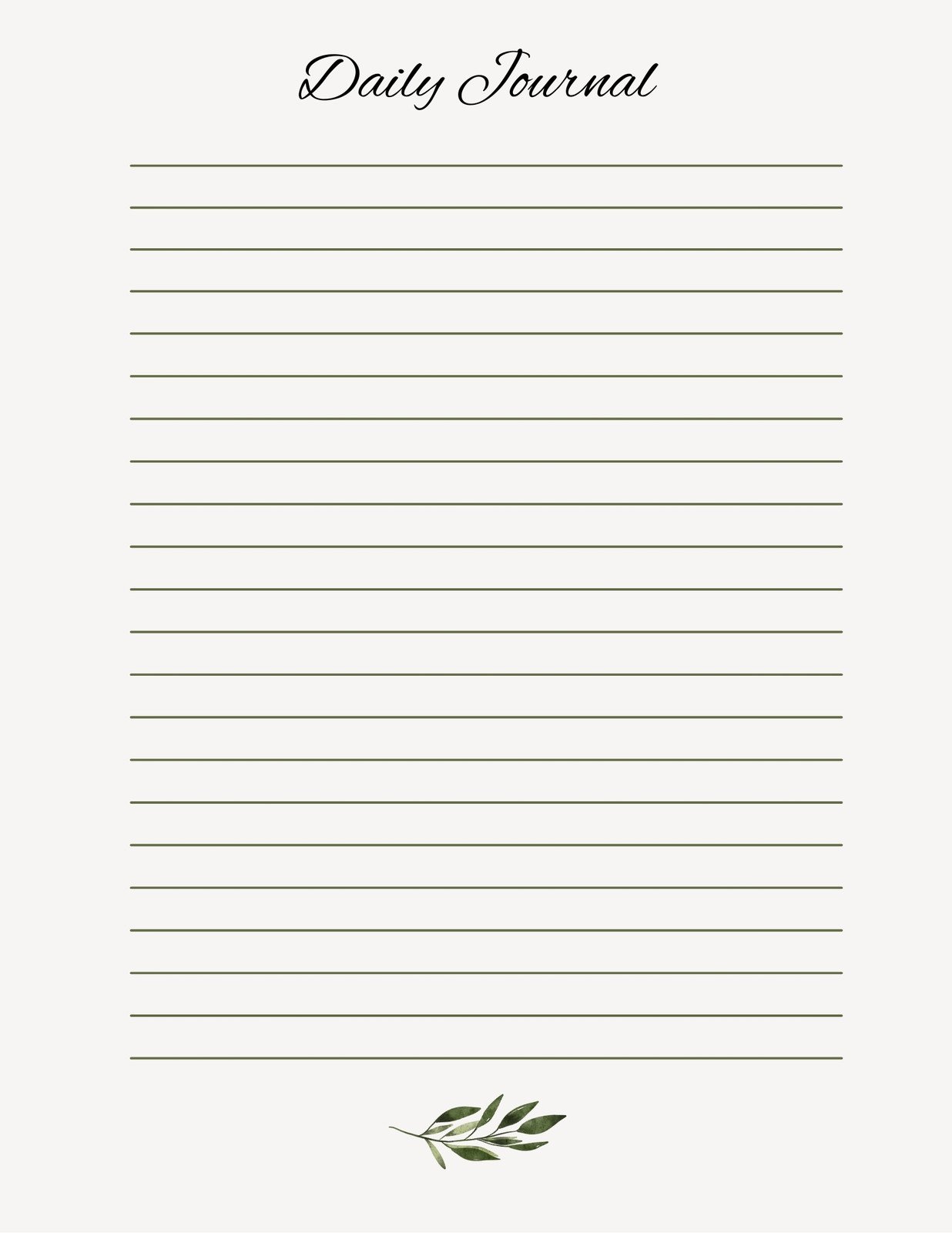
Option A: Simple Lined Journal (Best for Beginners)
Click Elements → Lines
Add horizontal lines
Duplicate lines to fill the page
Keep margins wide (Amazon trims pages)
Option B: Prompt-Based Journal
Example:
Date:
Today I feel:
Three things I’m grateful for:
Notes:
Important Formatting Tips
Use black or dark gray text only
Avoid images inside (keeps printing costs low)
Leave 0.5 inch margins
STEP 5: Duplicate Pages
Click Duplicate Page
Repeat until you reach:
100–120 pages (recommended)
👉 Canva automatically counts pages for you.
STEP 6: Download the Interior for KDP
Click Share → Download
File type: PDF Print
Select Flatten PDF
Download
This is your interior manuscript.
STEP 7: Create the Book Cover in Canva


Get Correct Cover Size
Go to Amazon KDP Cover Calculator
Enter:
Trim size: 6 x 9
Page count (example: 120)
Paper type: White
Download the cover template
Design in Canva
Upload the KDP template to Canva
Design:
Front cover (title + subtitle)
Back cover (optional text or blank)
Spine text (optional for thin books)
👉 Keep it simple and readable.
STEP 8: Download the Cover
File type: PDF Print
Color mode: CMYK (if available)
STEP 9: Upload to Amazon KDP


Go to kdp.amazon.com
Click Create → Paperback
Fill in:
Book title
Subtitle
Author name
Upload:
Interior PDF
Cover PDF
Choose:
Trim size: 6 x 9
Black & white interior
White paper
STEP 10: Pricing & Publishing
Price range: $6.99 – $9.99
Amazon shows printing cost automatically
Click Publish
⏳ Approval takes 24–72 hours
Pro Tips for More Sales
✅ Create multiple journals (same interior, different covers)
✅ Use keywords in title & description
✅ Keep designs minimal & niche-specific
✅ Publish consistently (10–20 journals = better chances)
Want Next?
I can help you:
Find low-competition journal niches
Create ready-to-use Canva templates
Write KDP titles, descriptions & keywords
Build a journal brand (not just one book)
Just tell me 👍